A video-call site cannot see your camera. A shop keeps asking for your location. A news site sends too many notifications. You do not need to reset all of Chrome to fix one website: each site has its own permission panel.
Change one site’s permissions
- Open the website in Chrome.
- Select the site-information icon to the left of the address.
- Choose Site settings.
- Change Camera, Microphone, Location, Notifications or another permission to Allow, Block or Ask.
- Reload the page so the new setting takes effect.
When to use Reset permissions
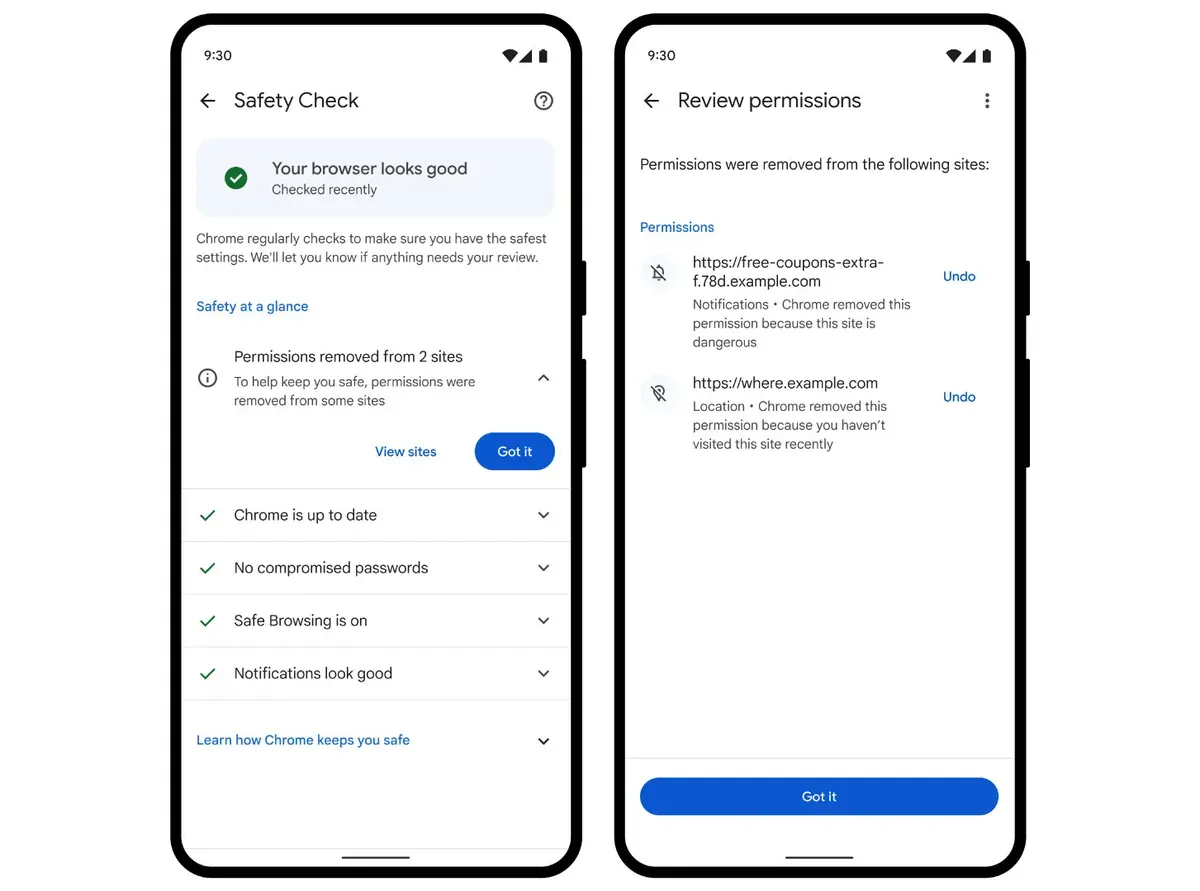
If several choices have become confusing, use Reset permissions when Chrome offers it. The site will ask again when it next needs access. This is safer than leaving camera, microphone or location access permanently allowed for a site you rarely use.
For a temporary task, choose Allow this time when available. Chrome revokes that permission after the visit instead of remembering it indefinitely.
Check the device setting too
Chrome cannot grant access that the operating system has denied. If a meeting site still cannot use the camera or microphone after you change its site permission, check the computer or phone’s privacy settings and confirm that Chrome itself is allowed to use that device. Then close and reopen the affected tab.